A while ago I was bored and was thinking,. What could you do with AI Vibecoding. CAN you do something useful out of it?
So I started to ask Claude. if it could do a Program for linux that could do Amiga partitioning and the result Became “AmigaPart”
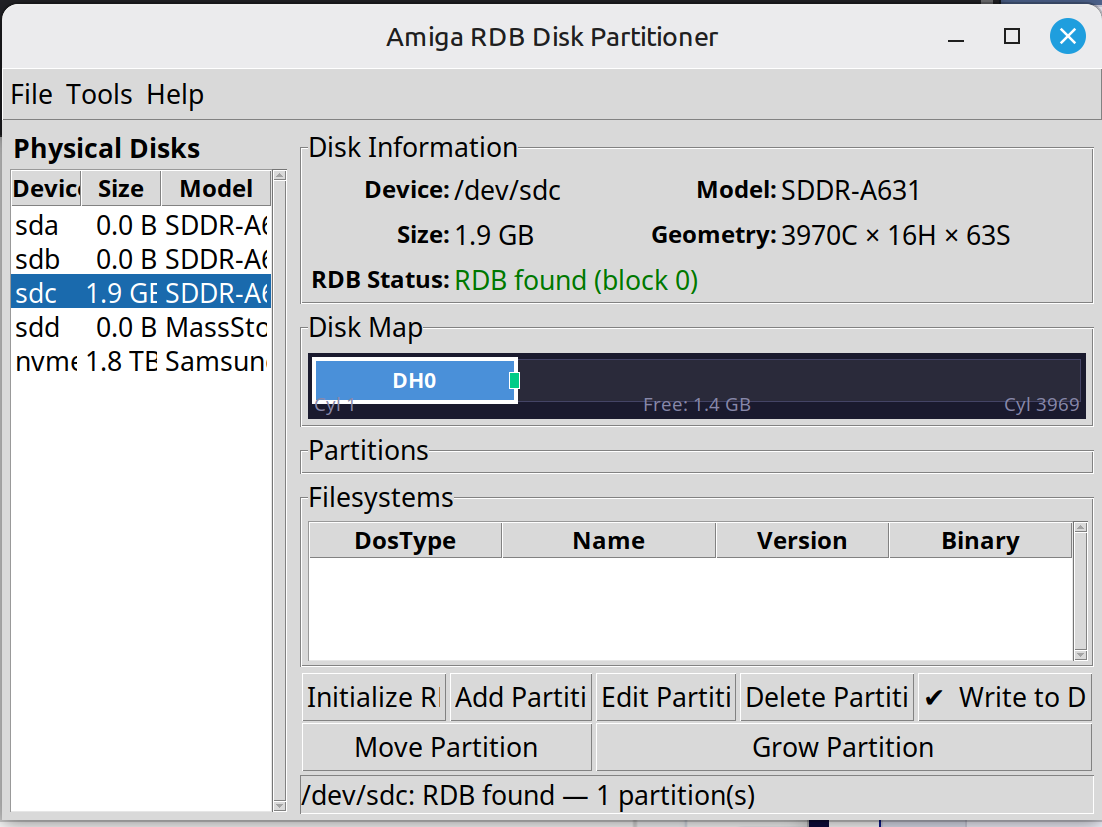
And it resulted in this Python3 program available at: https://github.com/ChuckyGang/AmigaPart
Where I checked it it could do things I been missing on Amiga software like change geometry etc. and even grow partitions. and to my surprise this worked.
so then I started to think: WHAT IF.. If it could do it NATIVE on the Amiga. so we FINALLY can get a decent partitioning software?
So I asked Claude to setup a new project for Visual Code based on Bartmans tool-chain: https://github.com/BartmanAbyss/vscode-amiga-debug
First I just did a big prompt: “Do A partitioning program” in short. it failed. but doing it in steps:
Set up a window. List all devices that can hold a harddrive.”.. etc. it started.
so before continue. AI Vibecode? YES! I know. this is touchy. but I started to do it as an experiment but as it works so well. why not have something NOW instead of later or never. as all sources is all open. why not.
Anway. THIS is how DiskPart got started. available at: https://github.com/ChuckyGang/DiskPart
Where you also can download the latest executeable file.
Anyway. as you cannot just prompt “do this” you had kinda similiar to theoretical programming, do it in parts!.
However lets go to HOW to use the software.
This is the (current) icon for it. Start it
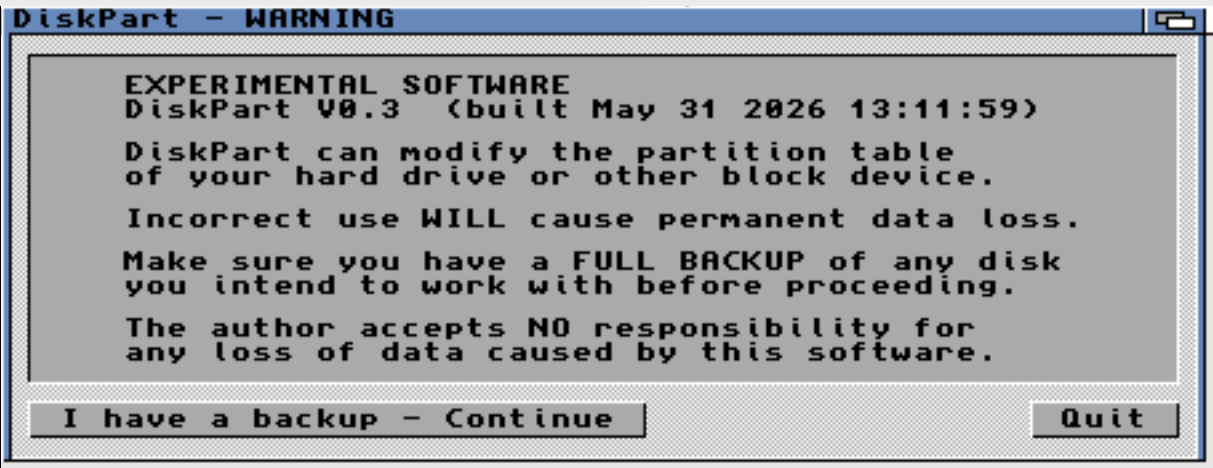
You will get this! (IF you set tooltype “NOWARNING” or start it with “nowarning” this warning will not be shown.) This IS in an experimental phase! you need to know what it means. it means it CAN destroy data on your disk. also take a look at build date. where you can see if there are a newer version. also if you have isssues. please tell me this data)
Continue.
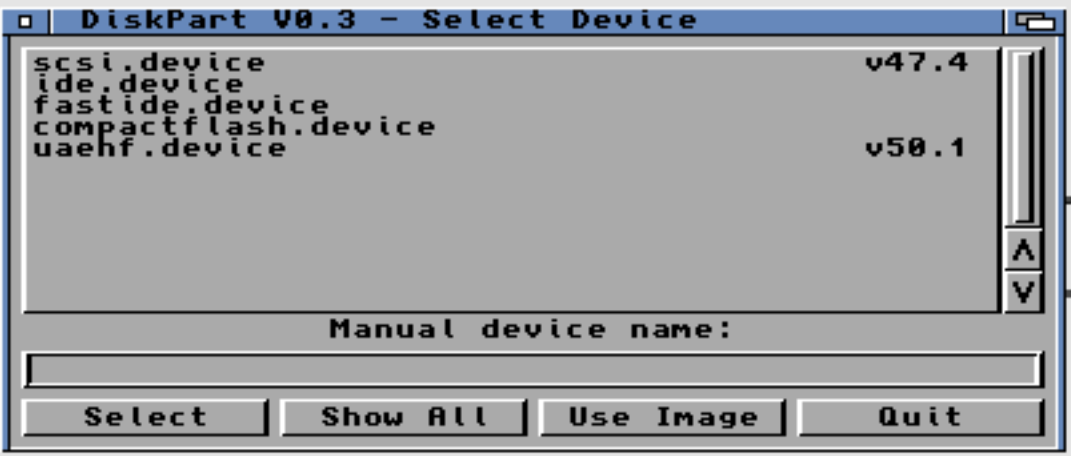
It will show devices that could in theory contain harddisks (if not, press the “Show all”) to show even more) choose your device. I will do uaehf as I am using an emulator. you CAN use an Image aswell. but remember that some amiga filesystems are unable to handle files larger then 2GB so if you have issues this can be a reason.

Then it shows your devices. select the disk you want to use.
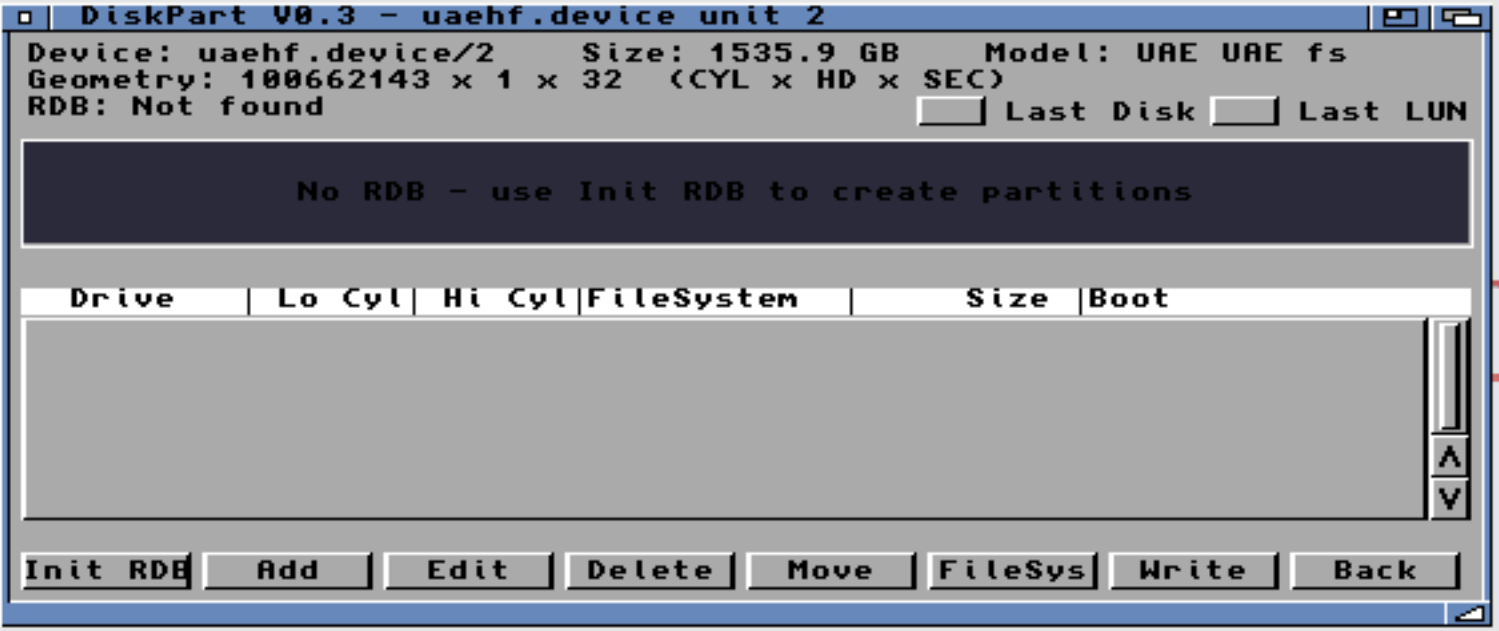
This is a new disk. you can see it found a 1535GB disk. Last Disk and Last LUN is not selected. IF those are selected AmigaOS will not look for any more devices after this. making things like SCSI scan quicker. BUT you need to uncheck this if yo have devices further away in the chain.
Anyway time to Initilize the disk “Init RDB”
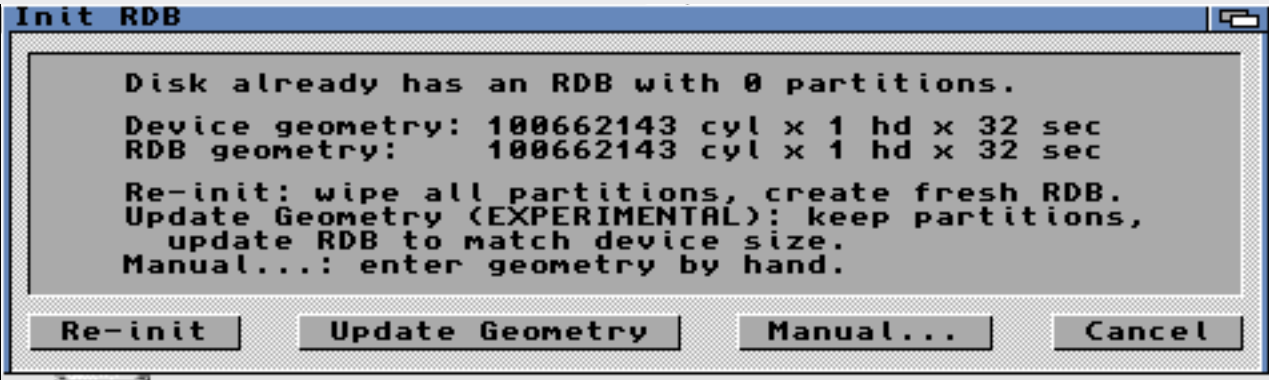
if you do a Re-Init here. you will intilize the disk and all data WILL be lost. Update Gemoetry is for if you wrote a image to your disk and your disk is larger. then you can update it and use the extra space and still keep your data. Manual is for Advanced users where you can set your disksize manually. you are on your own here.
to Create a Partition Press “Add”
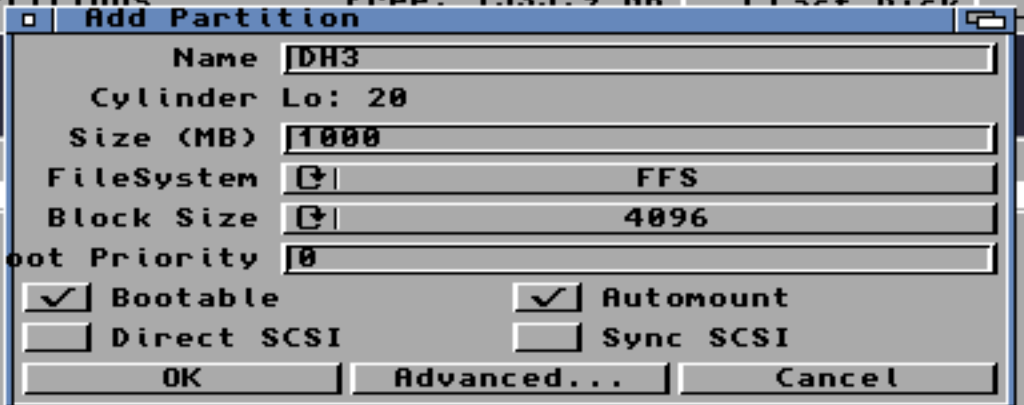
Here you can set Name. size, filesystem, bootable. etc. Size you wan write in MB as above or 100M or 1G etc.
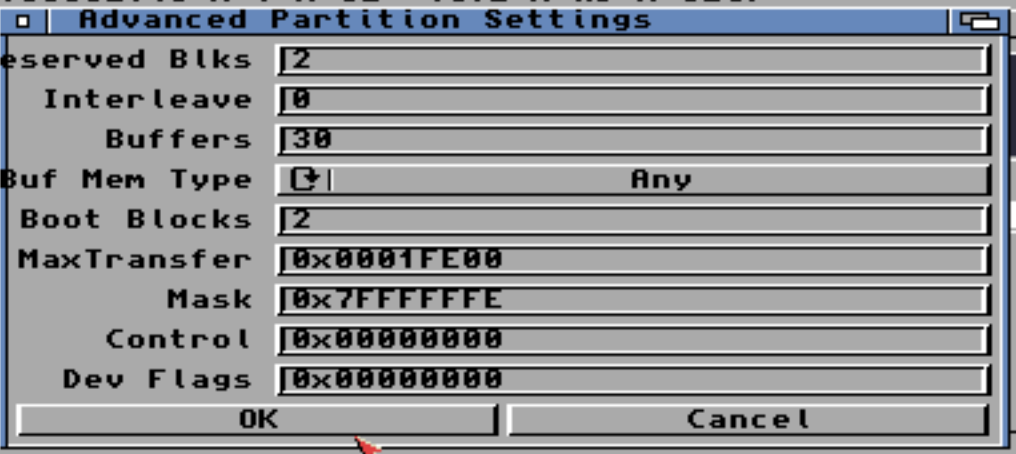
Under Advanced you can set more data. DiskPart will try to recomend the best values for you. Do NOT change values you do not understand.
Instead of pressing “Add” you can also click somewhere in the empty Partitionwindow and drag to wanted size:
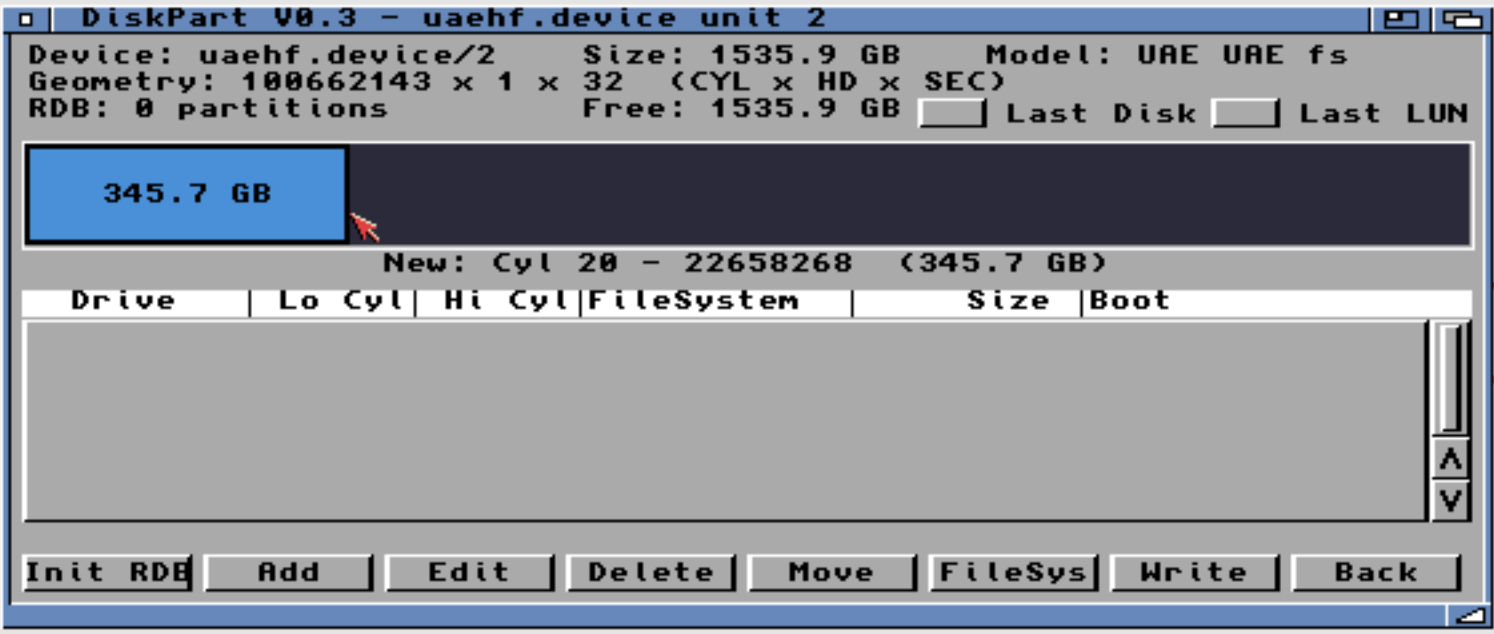
To Add Filssystem, press “FileSys”
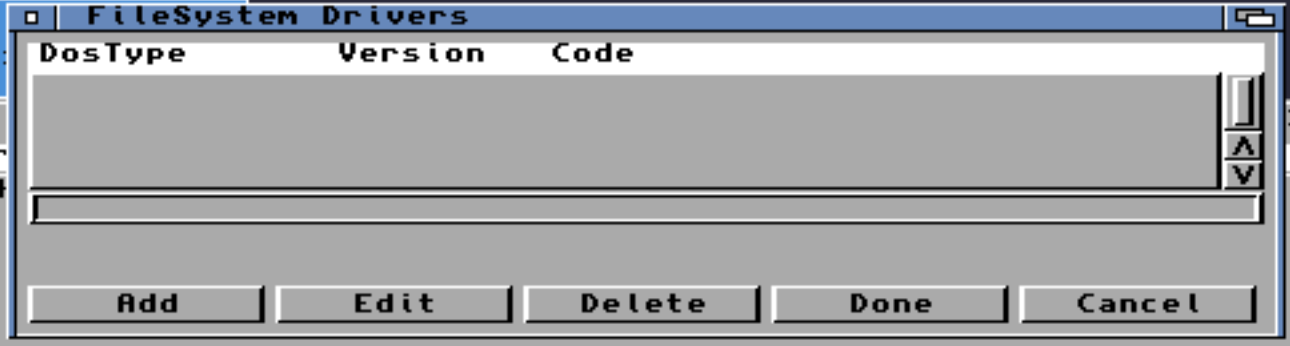
here you can add filesystems (or delete or update) press Add
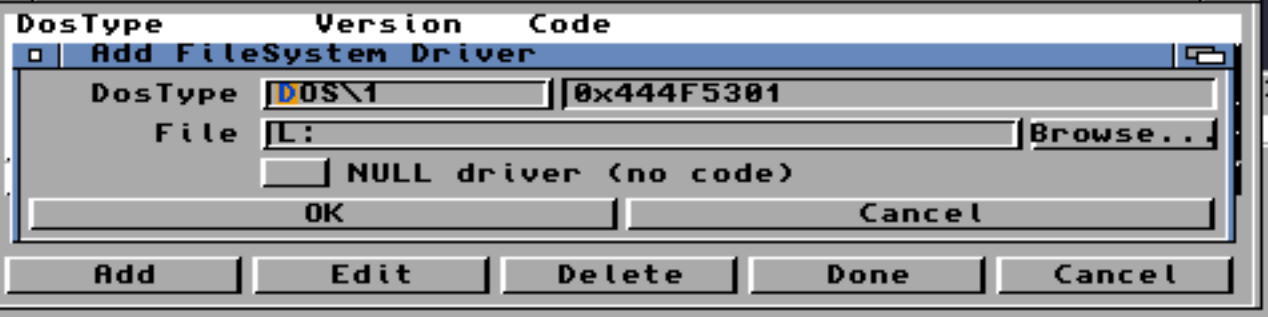
To add a filesystem press “Browse” and look for your system I looked up l:pfs3aio
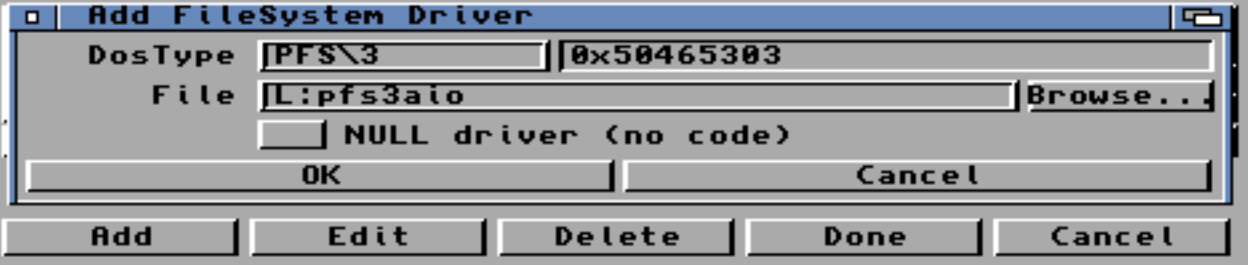
You will see it tries to guess DosType. you can enter a Dos type as either 0x50465303 or the more easy PFS\3 you can also use $50465303 whatever you want to use.
OK
and
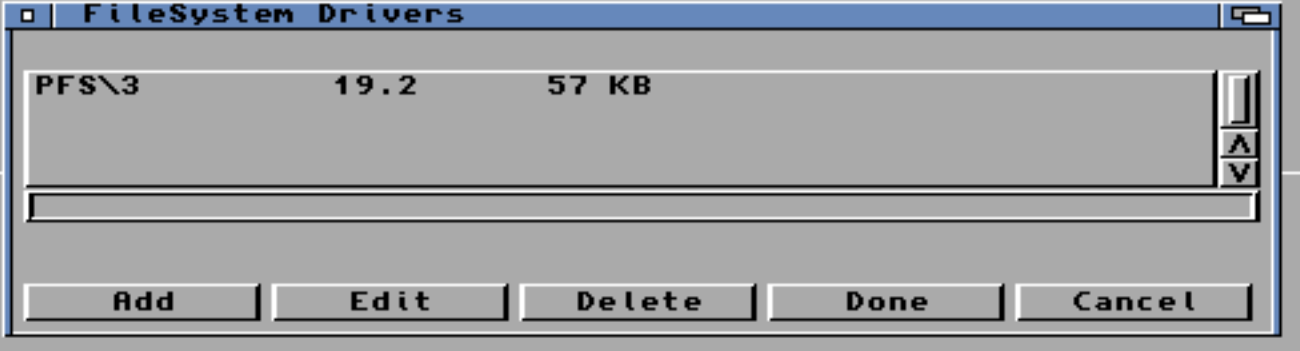
Done.
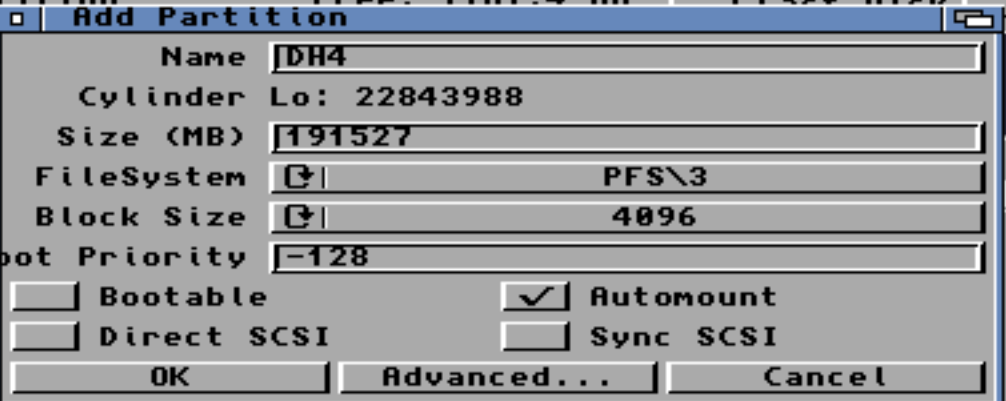
Now “PFS\3” is available as an option in the Add Partition list.
if you are done. press “Write” and you can exit DiskPart (your machine will reboot)
After reboot you will find a non formatted disk and you can format it and use.
but more advanced things.
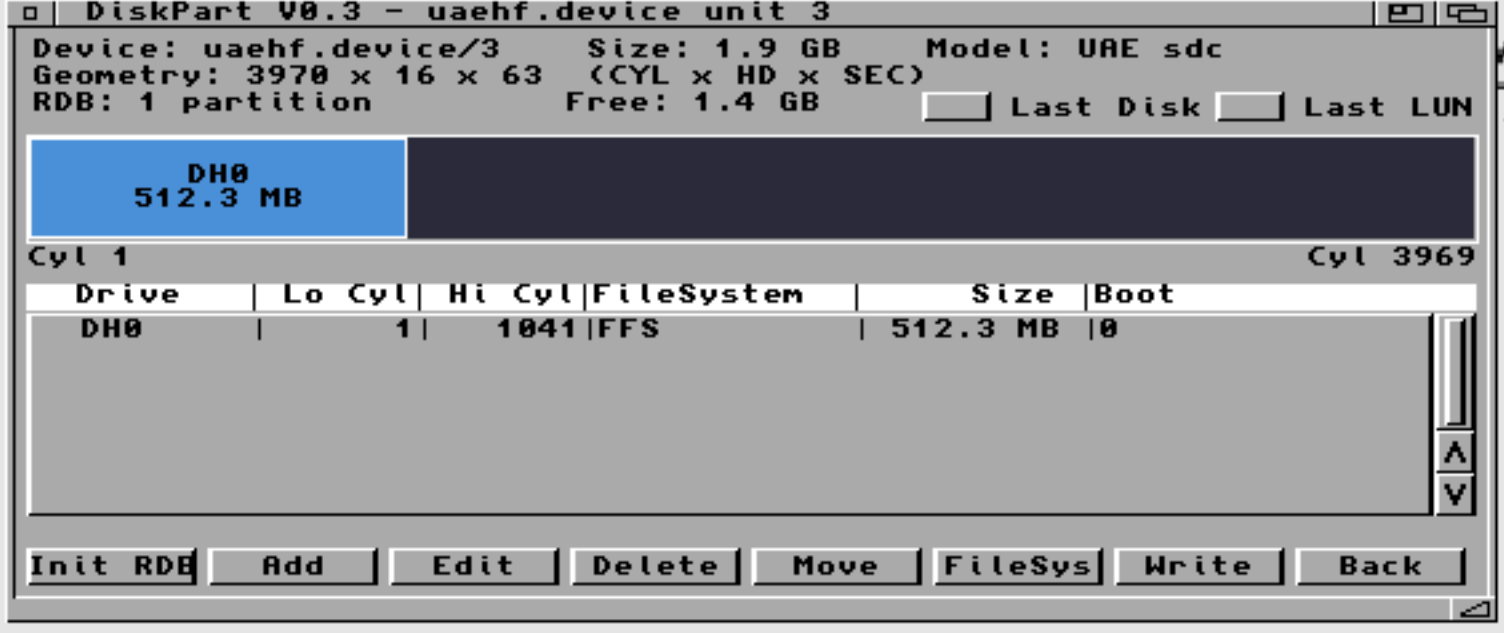
if you drag the left partition you can make it larger (or edit and change size) you get a:
you can also enter +500M to add 500MB to the partition. or +1G etc
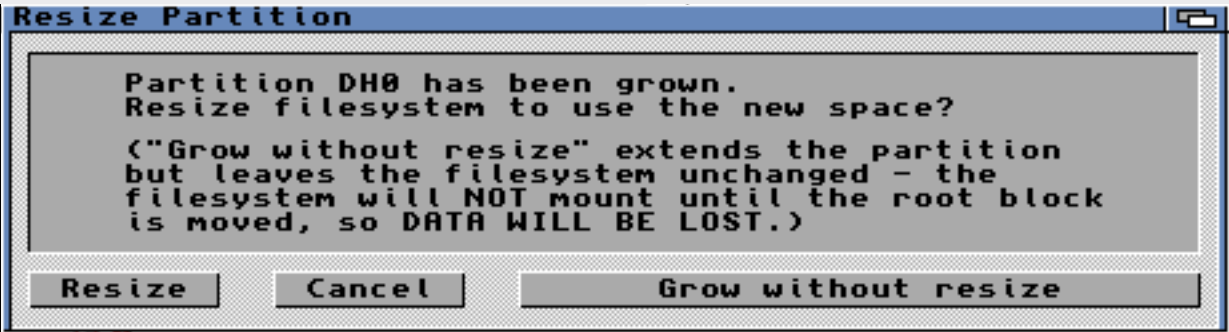
Grow without resize WILL just change the size and you WILL loose your data!-
Resize will resize the partition and you will keep your data.
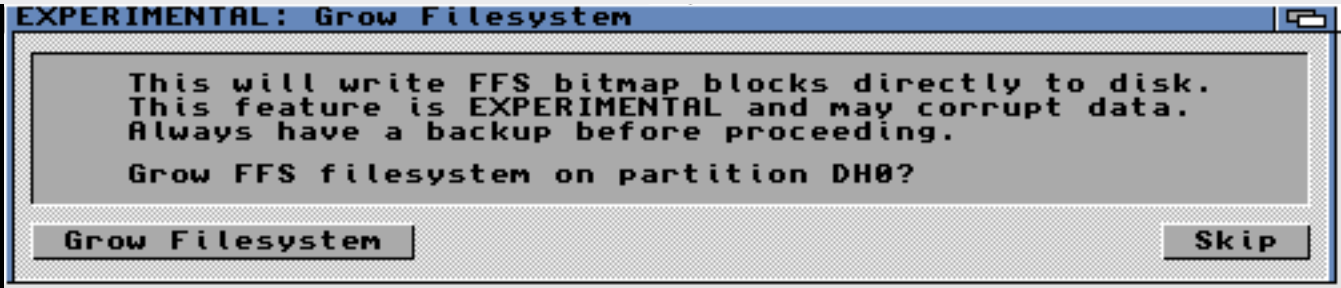
Press Grow filesystem. IF you power off your machine or anything happens here. DATA WILL BE LOST!

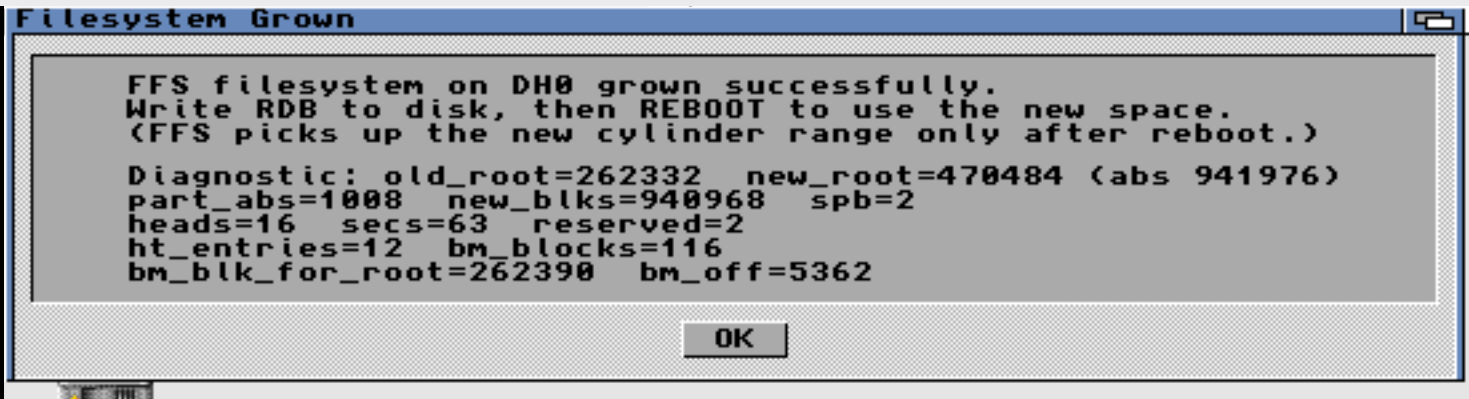
All fine.. press “OK” amd Write to disk.
IF you exit and forgot to write:
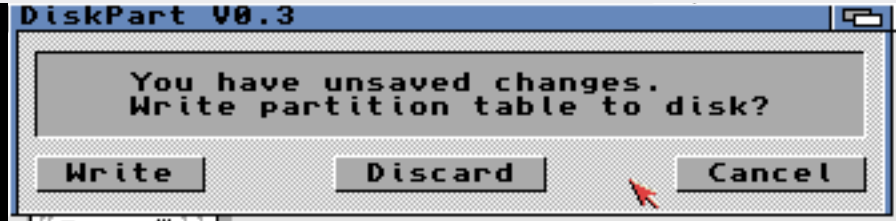
Do it here. if not. your data MIGHT be lost.
and it will reboot. Your parition will now be larger
To move a Partition you can just drag it. this will take a long time as it needs to copy data.
also if Anything happens during this move. data WILL be lost.
if you check the menus there are some good to have things:
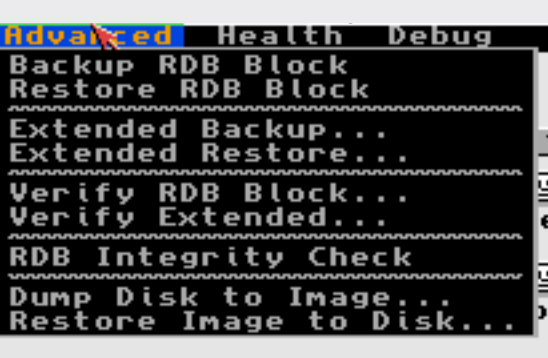
Backup RDB Block makes a backup of the RDB block.
BUT you want to do it via Extended as that also includes filesystems.
You can also make a image of the disk, or write a image to your disk. Remember that some filesystems on Amiga will NOT handle files larger then 2GB and then this will fail.
you can also use it as a commandline. there is a cmdline.txt text in the archive with instructions how to use it!

I’ve been using Claude Code for months now, this is GREAT use of the tech. Well done!
Did you check the generated vibed code and find any totally weird things?
I have done some checks. also had other AI tools codereviewed the same code.. and well others have checked aswell (as source is open)
none have found anything weird.
Anyone is free to check!
Dear Chucky,
I appreciate your efforts doing a decent partitioning tool for Amigas! After you polished all the technical features, I’d love to translate it to Hungarian so I’d like to ask for catalog/localizations support.
Best wishes,
wow yeah now you reminded me. I need to fix localesupport 🙂